Overview
If you play with an Elgato Stream Deck, these profiles put the commands and keys you use every evening on its buttons: /me and /do, local OOC, your phone and inventory, lock and engine, the support centre, reports and the wiki. They only use the actions built into the Stream Deck app, so there is nothing else to install.
Download | Device | Labels |
|---|---|---|
Stream Deck MK.2 and other 15-key decks (5 x 3) | English | |
Stream Deck XL (8 x 4) | English | |
Stream Deck MK.2 and other 15-key decks (5 x 3) | Bosanski | |
Stream Deck XL (8 x 4) | Bosanski |
The home page holds four folders (Chat and RP, Vehicle, Phone and menus, Help and web) and your most used buttons. Every button has its own icon with the key or command printed under the name, so you can see what it does before you press it.
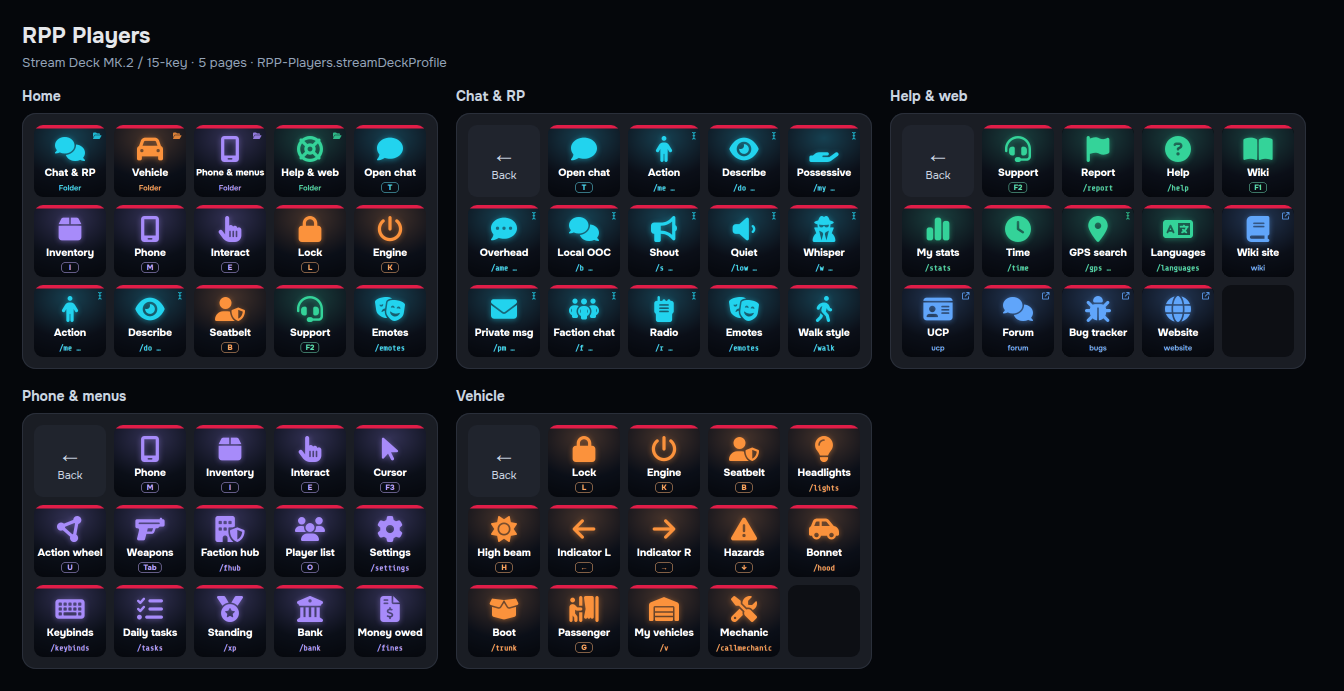
How to install
Install or update the Elgato Stream Deck app (6.5 or newer; the latest version is best).
Download the profile for your device from the list at the top of this page.
Double-click the
.streamDeckProfilefile, or open the Stream Deck app, go to Preferences > Profiles, click the + or the import option and pick the file.Select the new profile for your device in the profile drop-down at the top of the Stream Deck app.
The 15-key profiles are made for the Stream Deck MK.2 layout (5 x 3) and the XL profiles for the Stream Deck XL (8 x 4). If you import one onto another 15-key model, the Stream Deck app keeps it with the device type it was made for; move it to your device in Preferences > Profiles if it does not appear in the drop-down.
How the buttons work
There are three kinds of button. All of them use built-in Stream Deck actions, so no plugins are needed.
Key buttons (a key cap under the label, for example
I) are a Hotkey action that presses the game key.Chat command buttons (a command under the label, for example
/report) are a Multi Action: press T to open chat, wait 200 ms, type the command with the Text action ("Simulate typing"), then press Enter.Fill-in buttons (the command ends in
…and there is a cursor mark in the corner, for example/me …) do the same but stop before Enter, so chat stays open with the command typed. Type the rest (a player ID, a message) and press Enter yourself.
Link buttons (an arrow in the corner) open a website in your browser. Folder buttons (a folder mark in the corner) open a page of more buttons; the top-left key on every folder page takes you back.
Before you press anything
FiveM must be the focused window. Stream Deck types into whatever window has focus. If you are alt-tabbed out, the text goes into that window instead.
Chat must be closed and no menu or cursor open. The game ignores T while a panel, the phone or the cursor is open, so the command would be typed into nothing. If chat is already open, the button types an extra "t" before the command.
The keys assume the default binds. If you changed a key in
/settings(Keybinds) or in FiveM's own key bindings, open the button in the Stream Deck app and record your key in the Hotkey action instead.Windows only, because FiveM only runs on Windows.
If a chat button does not work
The command appears without the slash, or the first letters are missing: chat opened too slowly. Open the button in the Stream Deck app, select the Multi Action, and raise the Delay step from 200 ms to 300 or 400 ms.
Nothing is typed at all: select the Text step and switch "Text Mode" from "Simulate typing" to "Paste" (this uses your clipboard).
A key button does nothing: click into the game once so it has focus, then try again. Some keys only work in the right place (Engine needs you in the driver's seat, the Faction hub button needs a faction).
Key binds the pack assumes
Key | What it does in game |
|---|---|
T | Opens chat (fixed, cannot be rebound) |
I | Inventory |
M | Phone |
E | Interact |
F3 | Cursor |
U | Action wheel |
Tab | Weapon wheel |
F1 | Wiki reader |
F2 | Support centre (players) / admin chat (staff) |
O | Player list |
L / K | Lock / engine |
B | Seatbelt |
G | Enter as passenger |
H | High beam |
Left / Right / Down arrow | Indicators and hazards |
Buttons
The XL version has the same folders with more of the everyday buttons on the home page.
Home
Chat & RP: opens the folder
Vehicle: opens the folder
Phone & menus: opens the folder
Help & web: opens the folder
Open chat: presses T
Inventory: presses I
Phone: presses M
Interact: presses E
Lock: presses L
Engine: presses K
Action: types
/meand leaves chat open for you to finishDescribe: types
/doand leaves chat open for you to finishSeatbelt: presses B
Support: presses F2
Emotes: types
/emotesand sends it
Chat & RP
Open chat: presses T
Action: types
/meand leaves chat open for you to finishDescribe: types
/doand leaves chat open for you to finishPossessive: types
/myand leaves chat open for you to finishOverhead: types
/ameand leaves chat open for you to finishLocal OOC: types
/band leaves chat open for you to finishShout: types
/sand leaves chat open for you to finishQuiet: types
/lowand leaves chat open for you to finishWhisper: types
/wand leaves chat open for you to finishPrivate msg: types
/pmand leaves chat open for you to finishFaction chat: types
/fand leaves chat open for you to finishRadio: types
/rand leaves chat open for you to finishEmotes: types
/emotesand sends itWalk style: types
/walkand sends it
Help & web
Support: presses F2
Report: types
/reportand sends itHelp: types
/helpand sends itWiki: presses F1
My stats: types
/statsand sends itTime: types
/timeand sends itGPS search: types
/gpsand leaves chat open for you to finishLanguages: types
/languagesand sends itWiki site: opens https://wiki.roleplayproject.net
UCP: opens https://ucp.roleplayproject.net
Forum: opens https://forum.roleplayproject.net
Bug tracker: opens https://bugs.roleplayproject.net
Website: opens https://roleplayproject.net
Phone & menus
Phone: presses M
Inventory: presses I
Interact: presses E
Cursor: presses F3
Action wheel: presses U
Weapons: presses Tab
Faction hub: types
/fhuband sends itPlayer list: presses O
Settings: types
/settingsand sends itKeybinds: types
/keybindsand sends itDaily tasks: types
/tasksand sends itStanding: types
/xpand sends itBank: types
/bankand sends itMoney owed: types
/finesand sends it
Vehicle
Lock: presses L
Engine: presses K
Seatbelt: presses B
Headlights: types
/lightsand sends itHigh beam: presses H
Indicator L: presses Left arrow
Indicator R: presses Right arrow
Hazards: presses Down arrow
Bonnet: types
/hoodand sends itBoot: types
/trunkand sends itPassenger: presses G
My vehicles: types
/vand sends itMechanic: types
/callmechanicand sends it
Bosanski
Paketi s oznakom BS imaju iste tipke s nazivima na bosanskom. Preuzmite datoteku za svoj uređaj iz tablice na vrhu stranice, dvaput kliknite na nju (ili u aplikaciji Stream Deck otvorite Preferences > Profiles i uvezite je) i odaberite novi profil. Tipke s komandom otvaraju chat tipkom T, upisuju komandu i šalju je, pa igra mora biti aktivni prozor, a chat i meniji zatvoreni. Tipke čija komanda završava s … ostavljaju chat otvoren da sami dopišete ostatak (ID igrača ili poruku) i pritisnete Enter.
See also
Default keys for every key the game uses and how to change them
Settings and keybinds for binding a chat command to a key without a Stream Deck